5 min read
Writing to a Vault While Nobody Is Watching
Obsidian doesn't update themes on its own, so I wrote a plugin that does it at startup, with nobody watching. Obsidian's own installer isn't safe to run that way, so the plugin writes the files itself, by four rules.
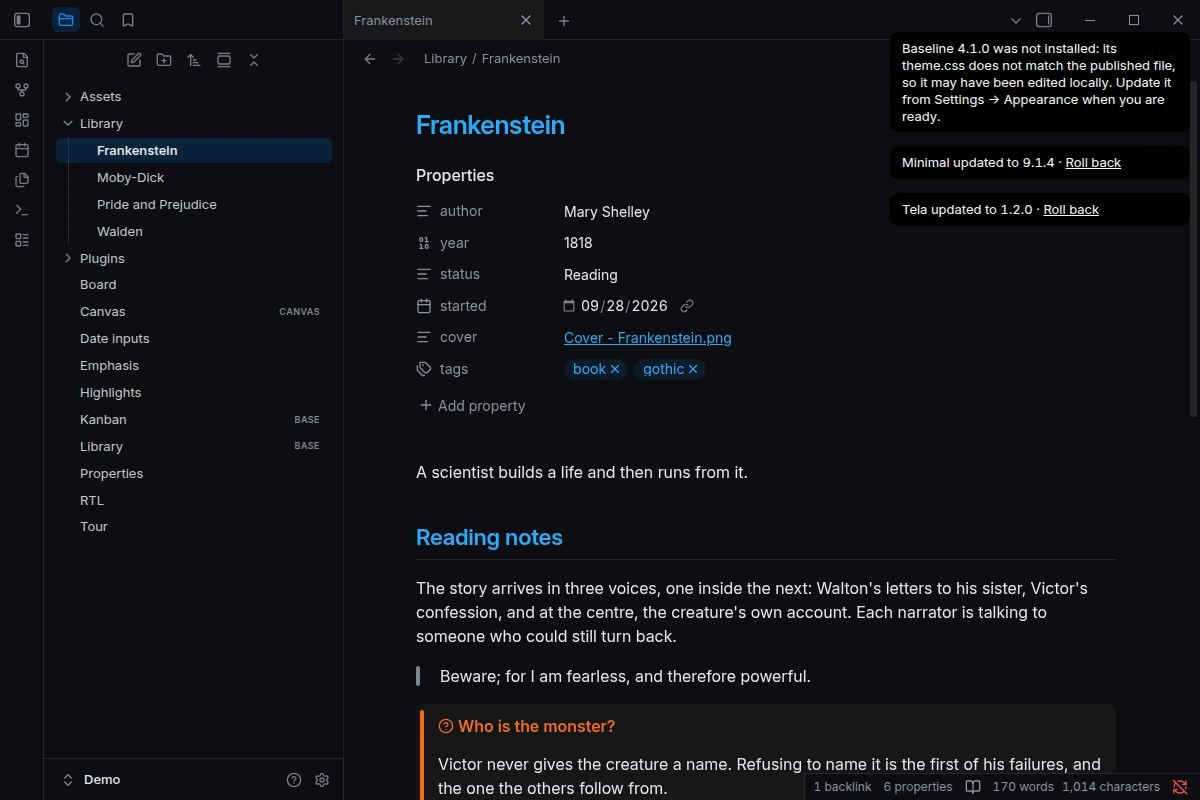
Obsidian checks your plugins for updates. It leaves your themes alone: its help page says “Themes don’t update automatically”. A fix the theme’s author shipped last month reaches you only if you open Settings → Appearance and click Check for updates.
Theme authors see the result. On GitHub, Minimal’s author has told someone to update the theme in 22 issues, and the author of Things in 33.
So I built Theme Autoupdater, a plugin that installs theme updates when Obsidian starts. The download is two files. The hard part is writing them into someone’s vault while nobody is watching, where a failure goes unseen.
Why themes and not plugins
Plugins are the bigger request: a forum thread asking for automatic plugin updates has been open since 2021. Obsidian 1.11.1 added a background check for them, but it only tells you about an update; it doesn’t install it.
There’s a reason for that. A plugin update is new code running in your vault, with access to your files, that nobody has looked at. A theme is CSS: it can make things look wrong, but it can’t run code, and a backup can undo it. So the first rule came before any code: update only what a backup can undo. The plugin updates themes and never touches plugins.
Obsidian’s own installer isn’t built for this
The obvious build is a plugin that clicks Update all for you at startup, and scripts that do exactly that already exist. Before writing one, I read how Obsidian 1.14.4 installs a theme. De-minified and shortened, it does this:
try {
  manifest = await download(release, 'manifest.json');
  css = await download(release, 'theme.css');
} catch (err) {
  // after one retry from the default branch
  notice.setMessage('Failed to install theme “' + name + '”.');
  return; // returns the same way as a success
}
await adapter.write(folder + '/manifest.json', manifest);
await adapter.write(folder + '/theme.css', css);
That’s fine when you click the button and watch. It isn’t safe to run unattended, for two reasons:
- A failure looks like a success. A failed download shows a notice for three seconds and returns, so the code that called it can’t tell the update didn’t happen.
- Nothing is kept. The new files go straight over the old ones, with no copy and nothing read back. A failure between the two writes leaves the new
manifest.jsonbeside the oldtheme.css, and there’s nothing to put back.
So the plugin keeps Obsidian’s rules for which version to install (the newest, or an older one from the theme’s versions.json when your Obsidian is too old for the newest) and does the writing itself, by four rules.
1. Prove the backup before touching anything
- Copy the current
theme.cssandmanifest.jsoninto a backup, and read the backup back. - Only then write the new files, and read them back too.
- If anything failed, put the old files back.
- Tell Obsidian to reload its themes. The active one changes without a restart.
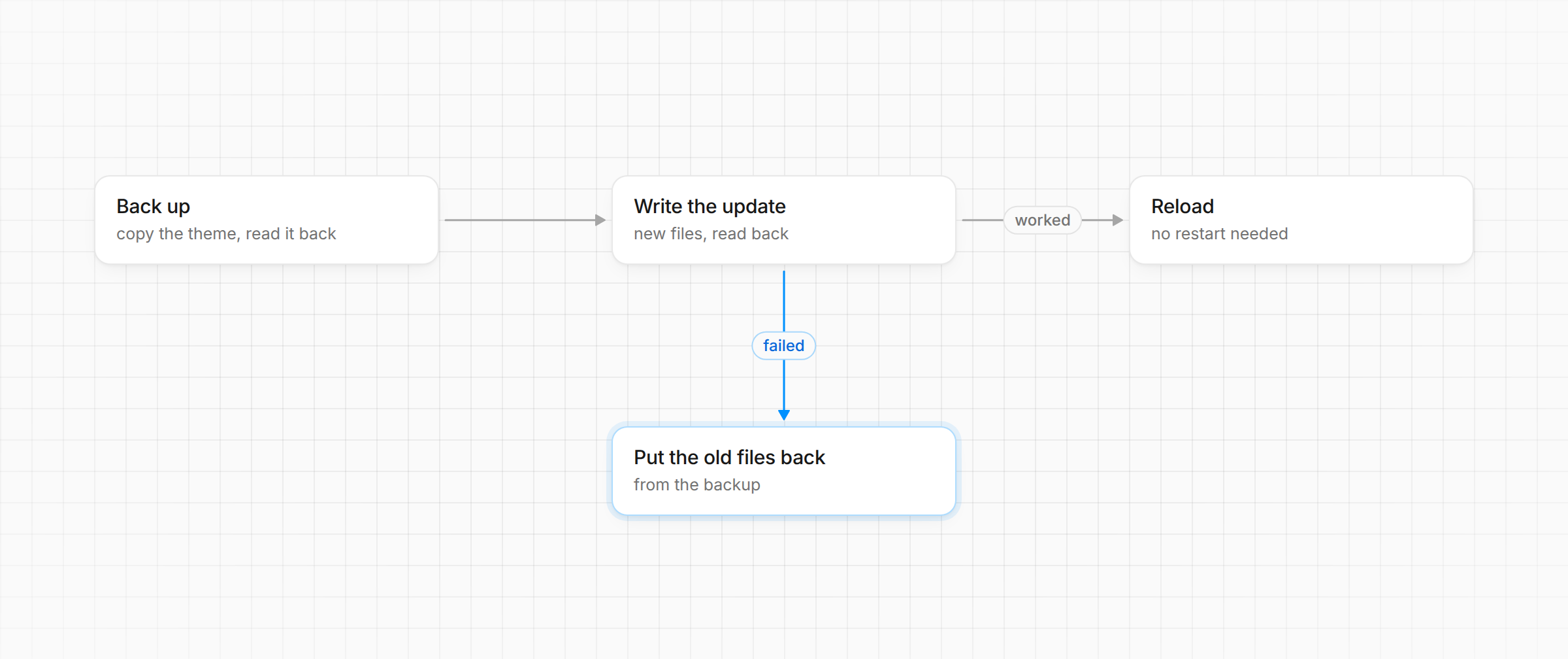
Reading a file straight after writing it looks redundant, but it’s the only proof of the write that doesn’t come from the code that made it. The same goes for testing: the update engine never calls Obsidian directly. Every read, write and download goes through one small interface, so each rule is tested against an in-memory vault, including a write that fails, a restore that fails too and a backup that can’t be written.
2. Only overwrite what someone published
Some people edit their theme’s CSS by hand, and Obsidian’s Update all overwrites those edits without asking. The plugin won’t replace a theme.css unless it can prove the file is one the author published. It fingerprints the file on disk and compares it with the copy the plugin wrote last time, the GitHub release of the installed version, and the default branch when that’s still at the installed version. Trimmed, the check reads:
const current = hash(css);
if (state.hash === undefined) {
  const published = await publishedCss(repo, theme.version);
  if (published.some((text) => hash(text) === current)) state.hash = current;
}
if (state.hash !== current) return { type: 'edited', name, to: update }; // nothing written
return install(theme, update);
No match means someone changed the file, so the theme is held back and you’re told once per version. The fingerprint is cyrb53, a fast 53-bit string hash rather than a cryptographic one: it’s there to notice an edit, not to stop an attacker.
3. Stop writing when you can’t see what you’re changing
The list of themes the plugin reloads, the one Settings → Appearance shows, isn’t part of Obsidian’s public API, so a future Obsidian could change it. At every start the plugin checks that the list still has the shape it expects. If it doesn’t, the plugin stops writing and only tells you that an update exists. A plugin that falls back to a notice is a nuisance; one that writes on a wrong guess about Obsidian’s internals could break every vault it’s installed in at once.
4. Remember the user’s no
Automatic updates have a cost: you get the bad releases as well. Theme issue trackers have people reinstalling the previous version by hand after a release broke something, and a major redesign can land on you overnight.
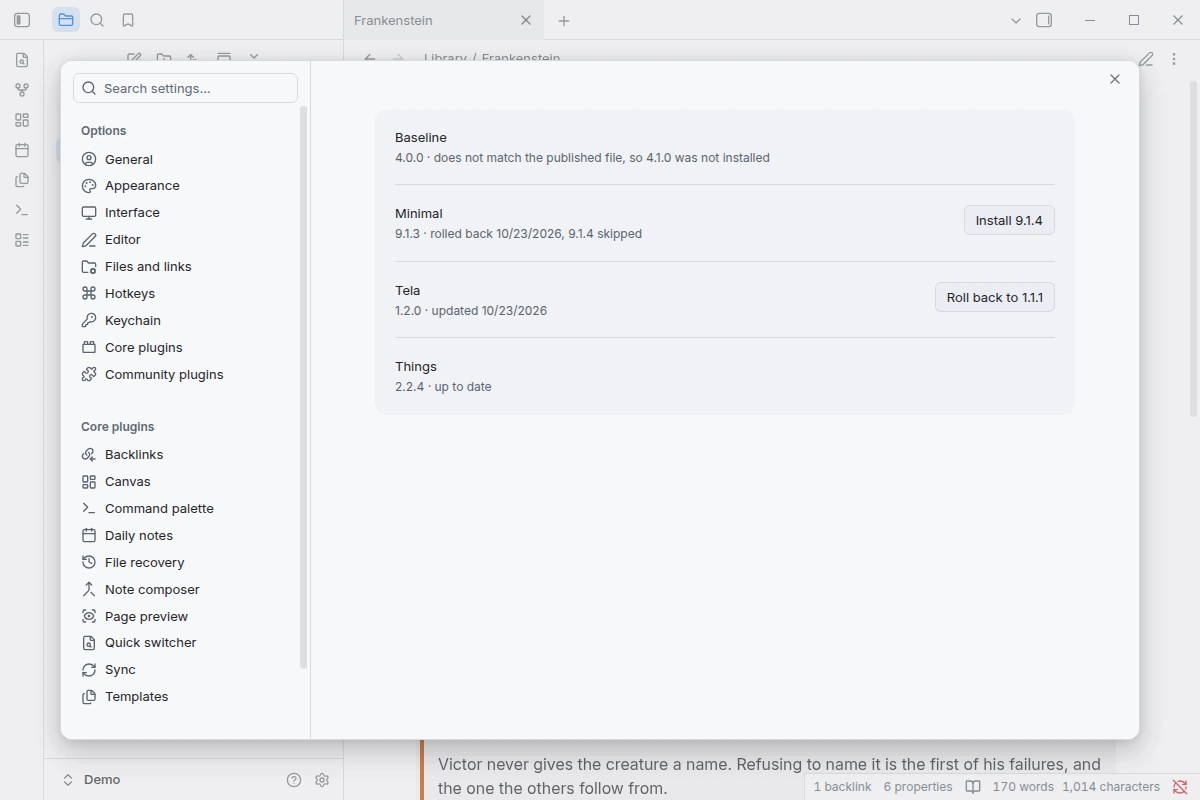
Every notice has a Roll back link. Rolling back checks the backup against its fingerprint, restores it and skips the version you rolled back from. Without the skip, the next start would reinstall the release you just rejected. With it, the release after that installs normally.
For theme authors
There’s nothing to set up. Your users get a release the next time they open Obsidian, as long as its tag matches the version in manifest.json (1.2.0, not v1.2.0) and it carries theme.css and manifest.json. If your tags start with a v, the plugin can’t match the files your users have, so it waits until they update once by hand.
What it doesn’t do yet
It updates only themes in their own folder, not old single-file ones (themes/Name.css). A skipped version lives in the plugin’s settings, so sync those across devices, or another device may reinstall the version you rolled back from. And it has run under mobile emulation in the desktop app, not yet on a phone.
Try it
In Obsidian: Settings → Community plugins → Browse, search “Theme Autoupdater”. It’s free, it fetches only from GitHub, and it sends nothing anywhere. The code is at github.com/rbartoli/obsidian-theme-autoupdater.